step 1
The functionalities and visualisation may vary depending on the business unit and the role of each employee.
REQUIREMENTS
– A digital device with Android or iOS (iPhone/iPad).
– A internet connection (Wi-Fi recommended for downloads).
– Active KAEFER corporate email address and password.
5. Sign in with KAEFER work account
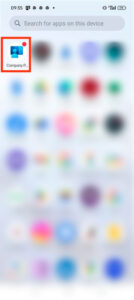
5. Search the new icon of Company Portal.
On your home screen, tap the installed Company Portal app icon to open it.
1.6 On the sign-in screen, enter your work email address (e.g., yourname@mykaefer.com).
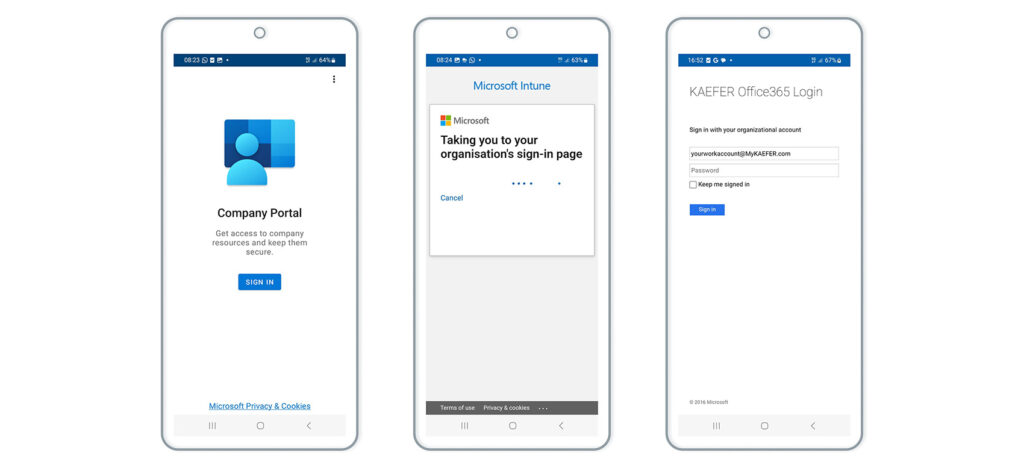
1.7 Enter your password.
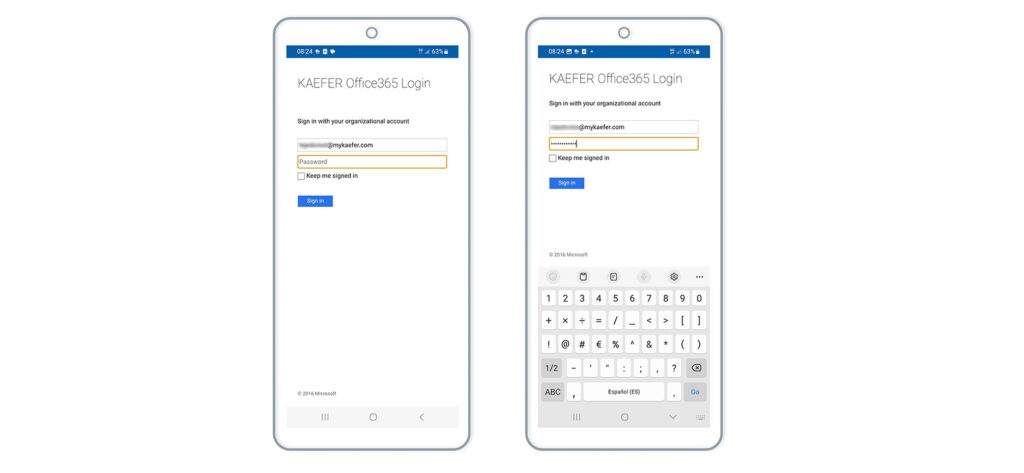
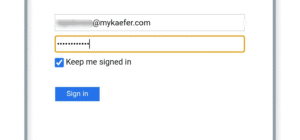
1.8 You may see an option to keep me signing in to save your login credentials in this device.
The saved login session lasts for 14 days. After this period, you will need to sign in again.
In some case, you need to make sure you have your authentication device available (e.g., phone with Microsoft Authenticator or access to your corporate email).
As KAEFER uses Multi-Factor Authentication (MFA), verify your identity using one of the following methods:
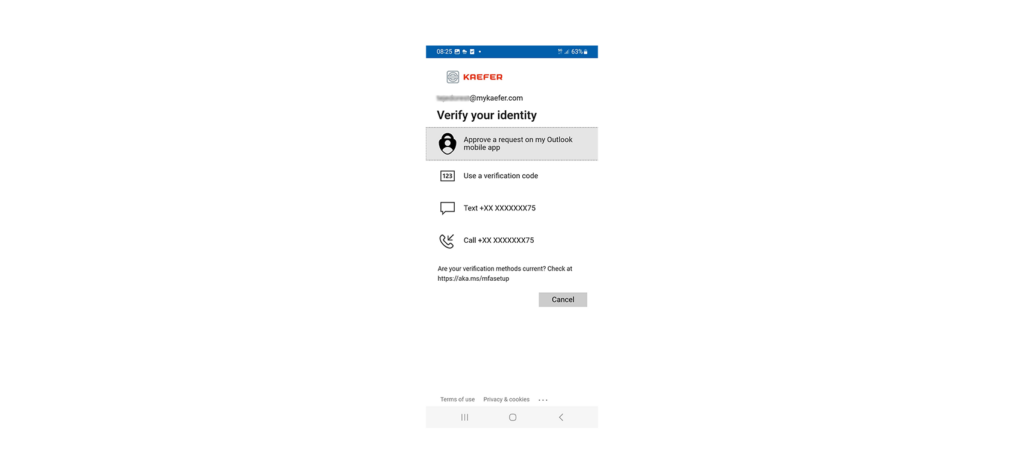
Enter a verification code sent via SMS, email, or an authenticator app.
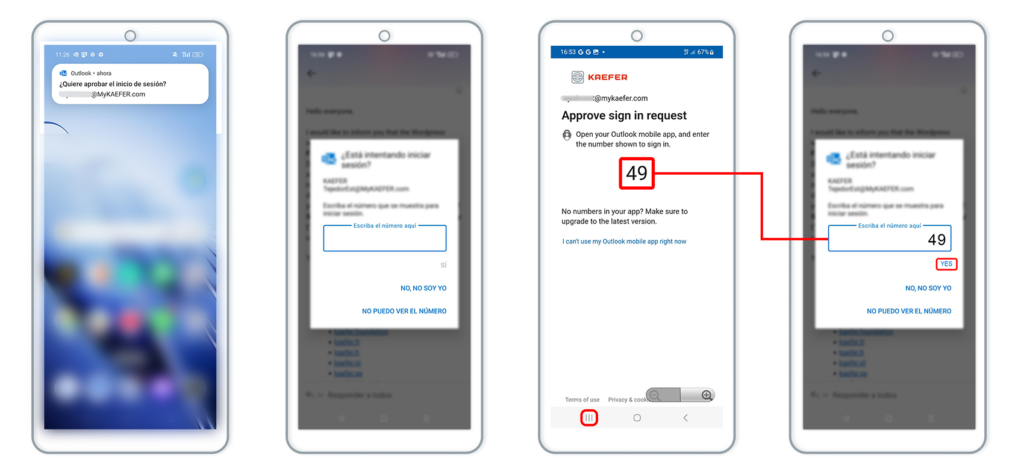
EXAMPLE OF AUTHENTICATION PROCESS (Multi-factor authentication – MFA)
– On the authetication device, pop-up notification appears.
– Memorize or copy the 2-digit code.
– Return to the Company Portal login screen and enter the verification code.
– Press Yes.