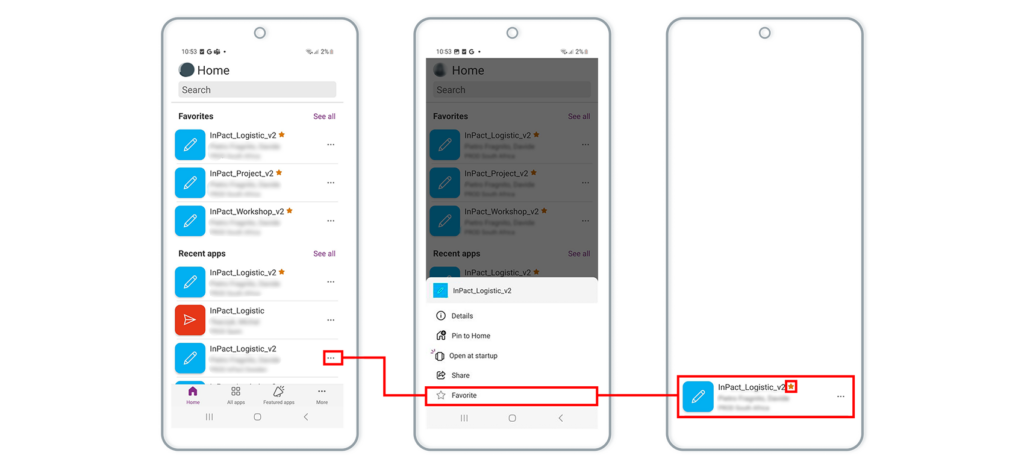
step 3
The functionalities and visualisation may vary depending on the business unit and the role of each employee.
REQUIREMENTS
– A digital device with Android or iOS (iPhone/iPad).
– A internet connection (Wi-Fi recommended for downloads).
– Active KAEFER corporate email address and password.
– Active KAEFER Intune Company Portal (STEP 1.5).

Currently, there are three applications available:
However, the appearance and functionalities of each app vary depending on:
1. Your Role – Different roles may have access to specific features within each app.
2. Business Unit – Access permissions and available options depend on your country strategy.
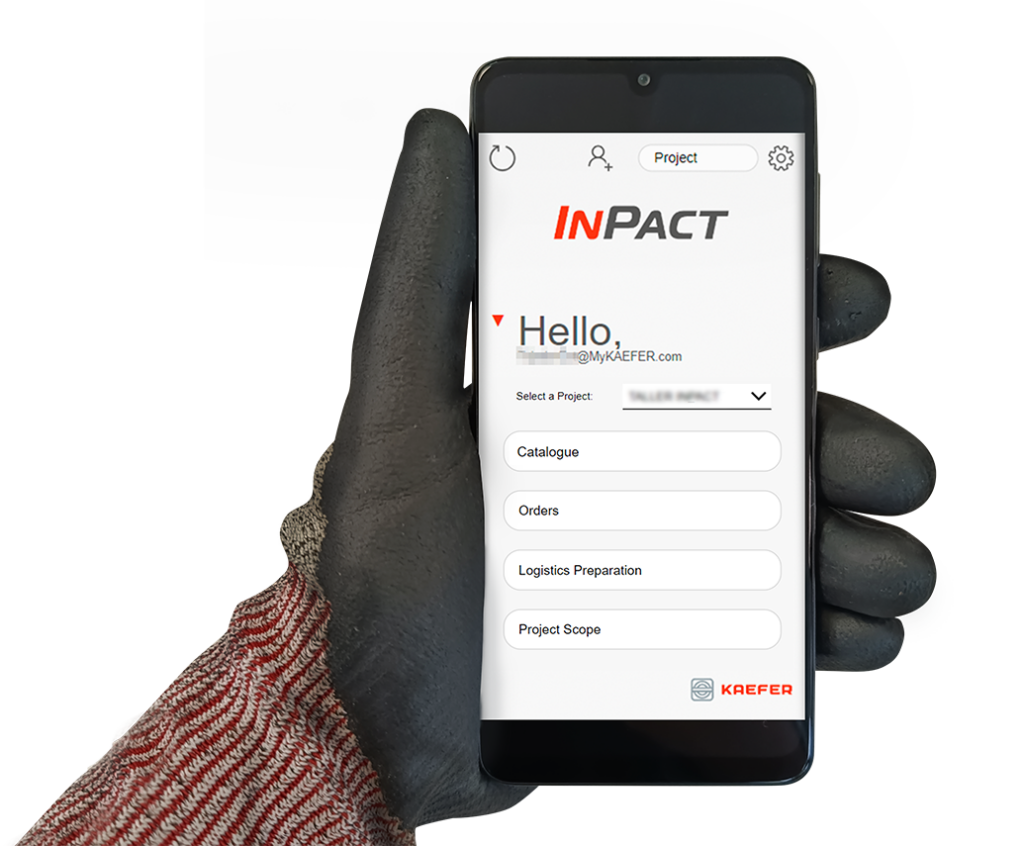
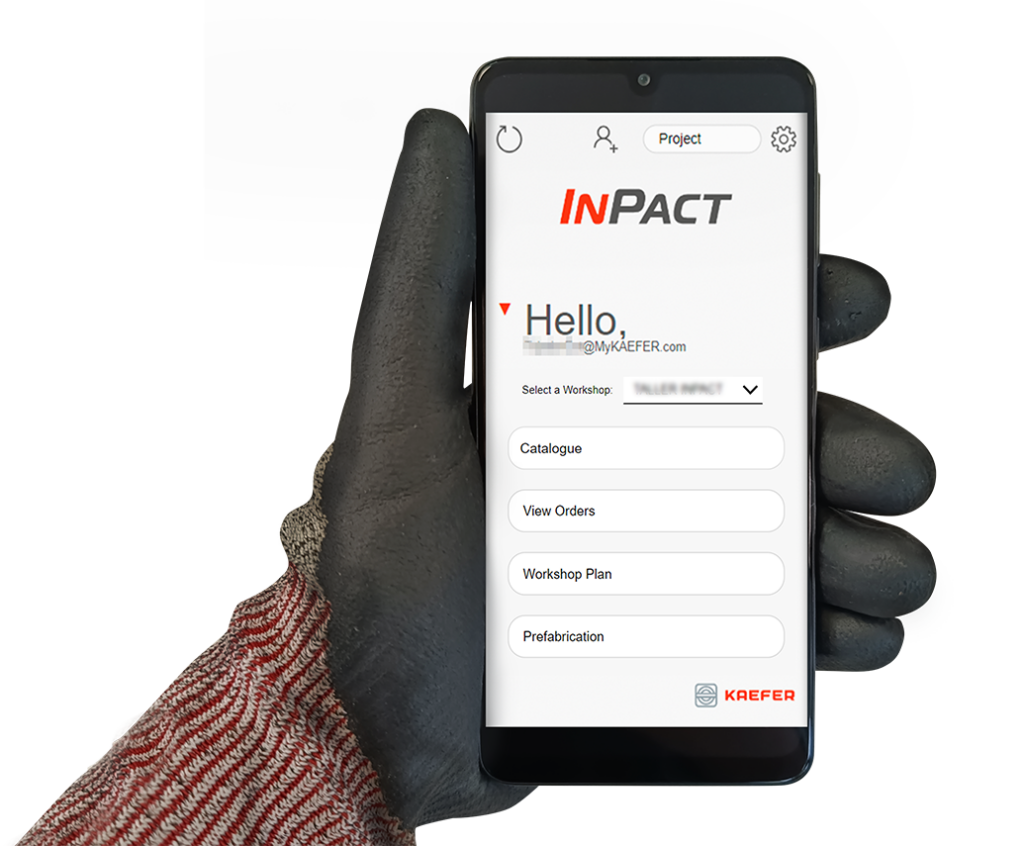
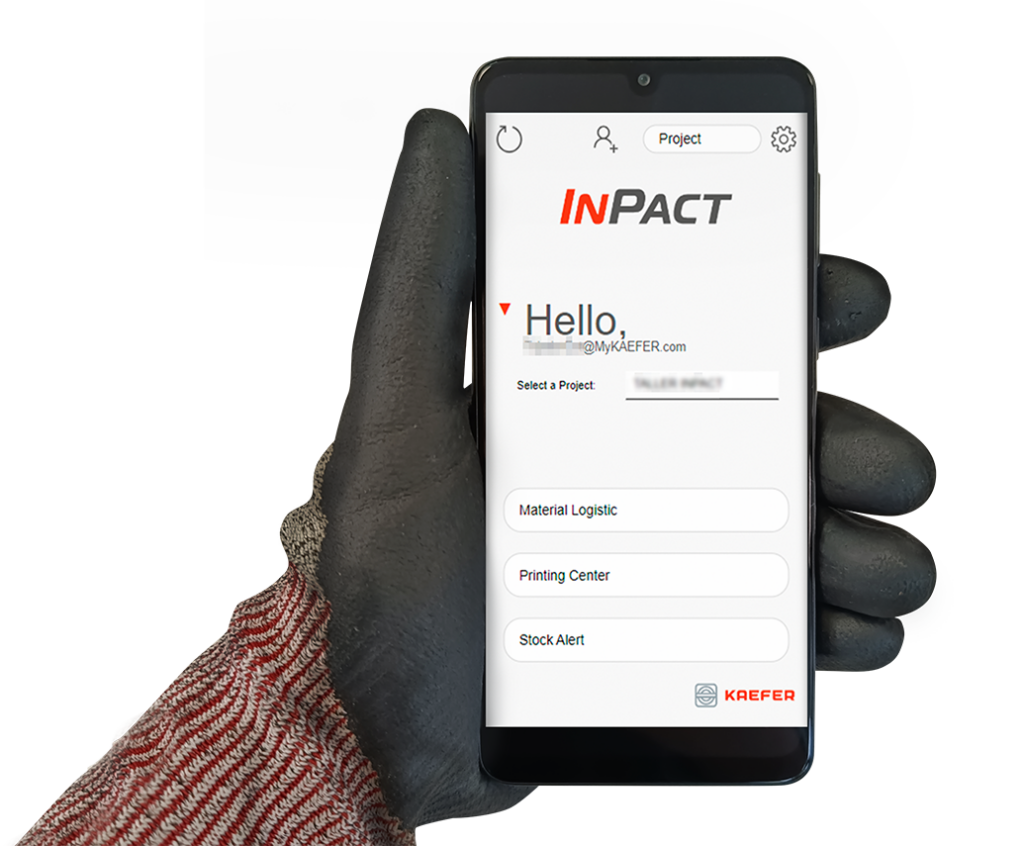
3. Navigate the Power Apps Home Screen
* Press “Open” after installing the Power Apps app, or search for it in your device’s app list.
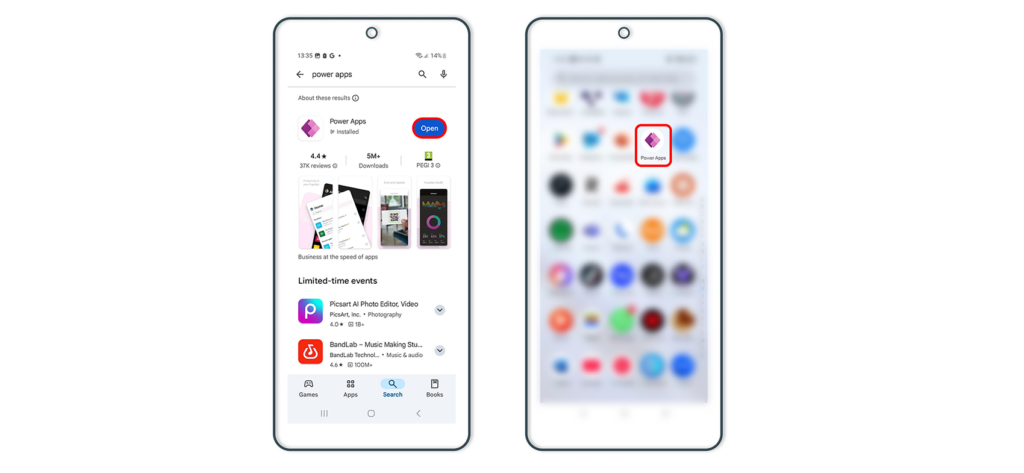
3. 1 After signing in, you will see the home screen displaying available apps.
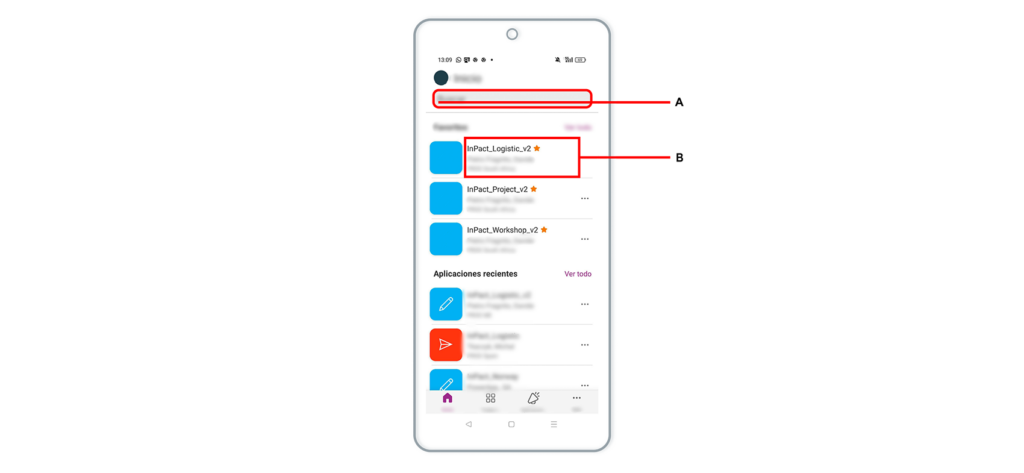
3.2 Use the search bar at the top to quickly find a specific app (A) or swipe up or down to scroll through the list (B) to find the desired InPact App.
Add the InPact App to Favorites (Optional)
If you frequently use a specific app, tap the three dots ( . . . ) next to the app name and select “Favorite”.
This will place the app in the Favorites section for quicker access and is displayed with a star on the right side of the description.