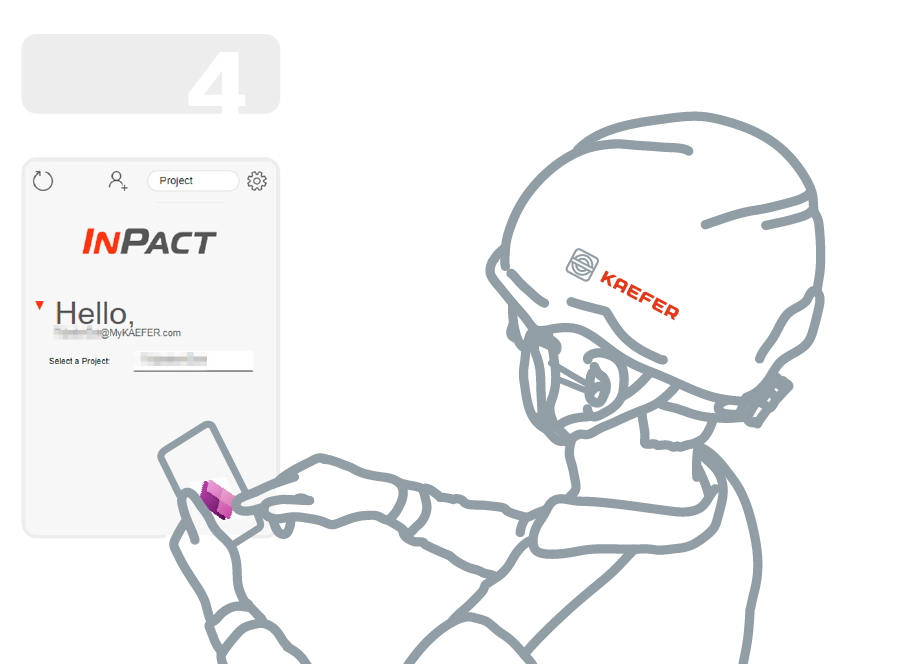
step 4
The functionalities and visualisation may vary depending on the business unit and the role of each employee.
REQUIREMENTS
– A digital device with Android or iOS (iPhone/iPad).
– Active KAEFER corporate email address and password.
– Active KAEFER Intune Company Portal (STEP 1.5).
– Access to project(s)/warehouse.
Navigate the Power Apps Home Screen
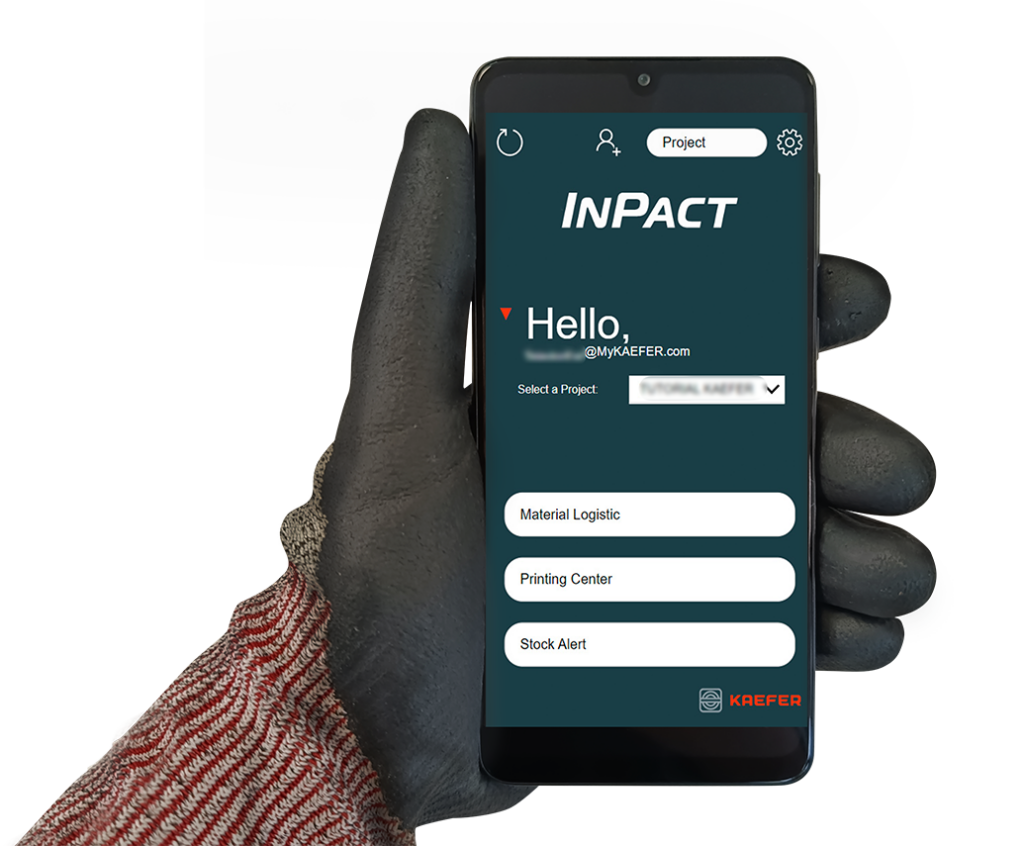
Once you open the application, the home screen will appear.
For more information on how to configure the appearance or change language, click here.
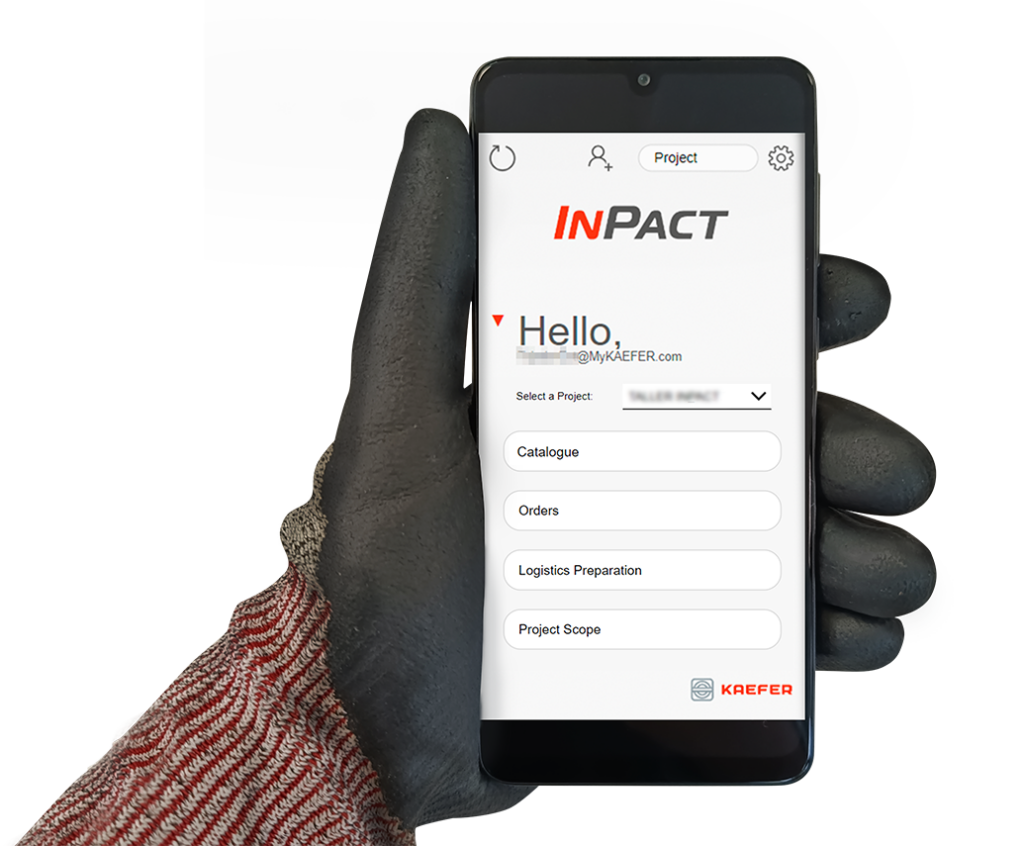
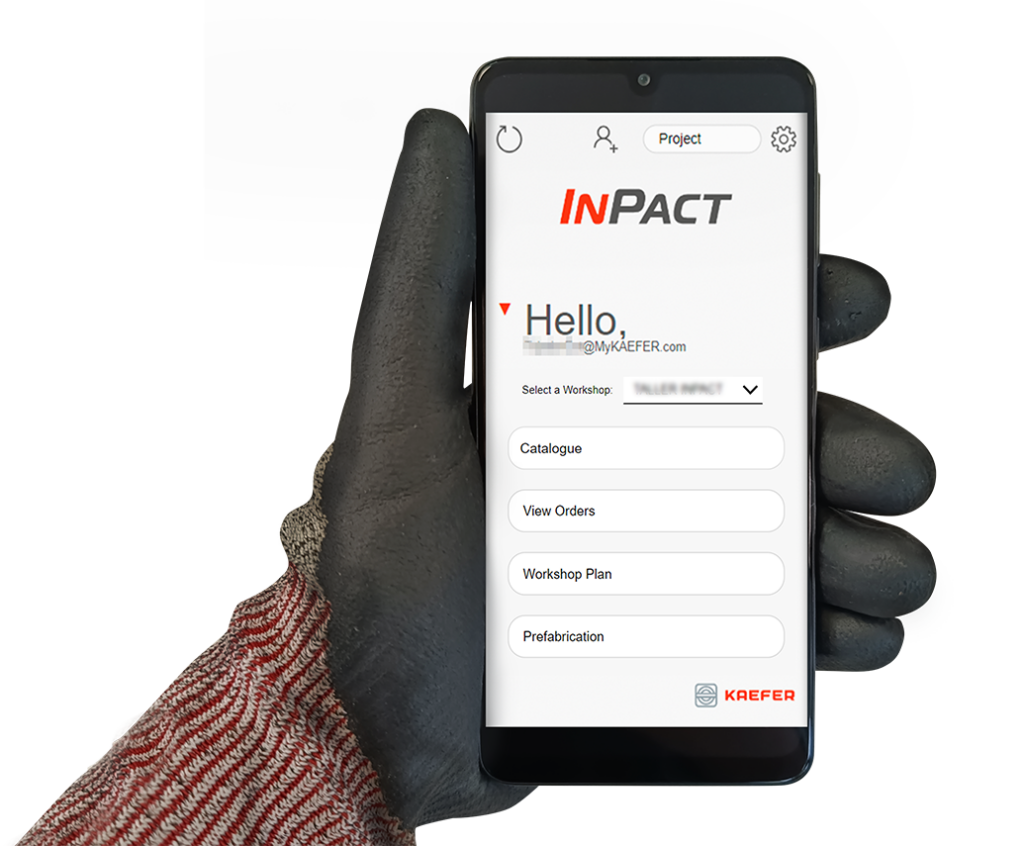
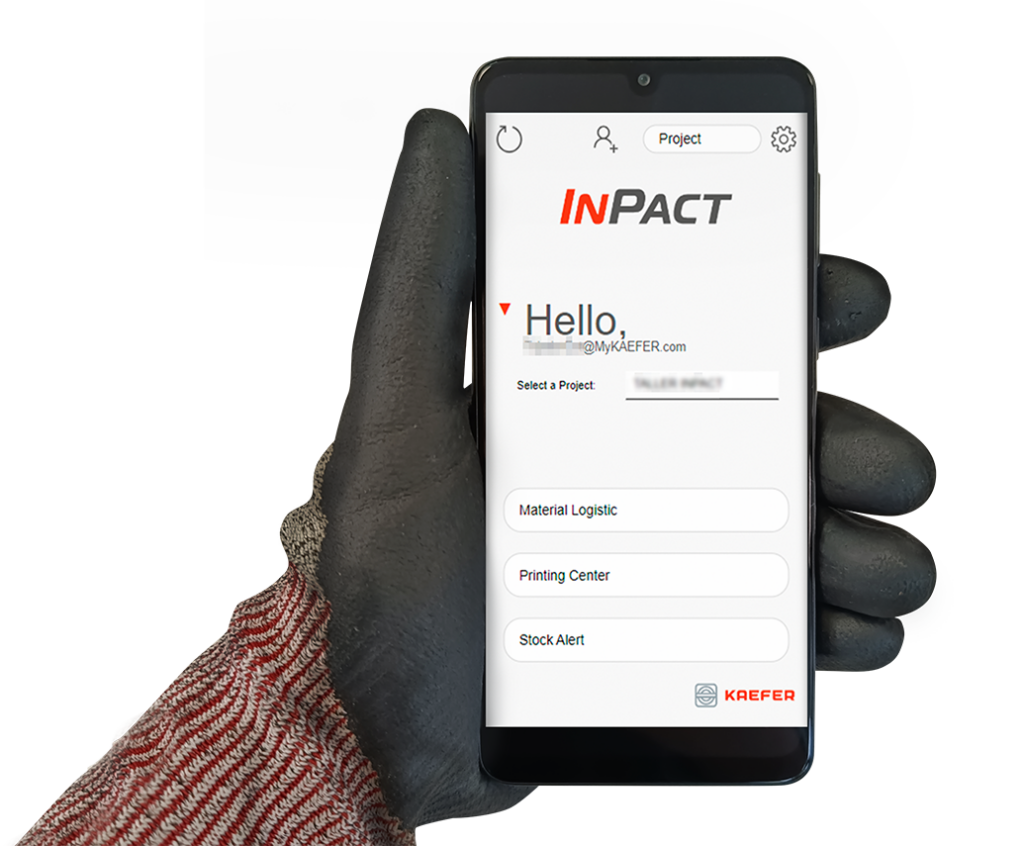
Follow these steps to access the correct project or warehouse:
4.1 Tap the dropdown menu on the home screen.
4.2 A list of available projects or warehouses will appear. Scroll through the list or use the search bar to find the desired option.
4.3 Select the appropriate project or warehouse and the functionalities associated with your permissions and role will be activated.
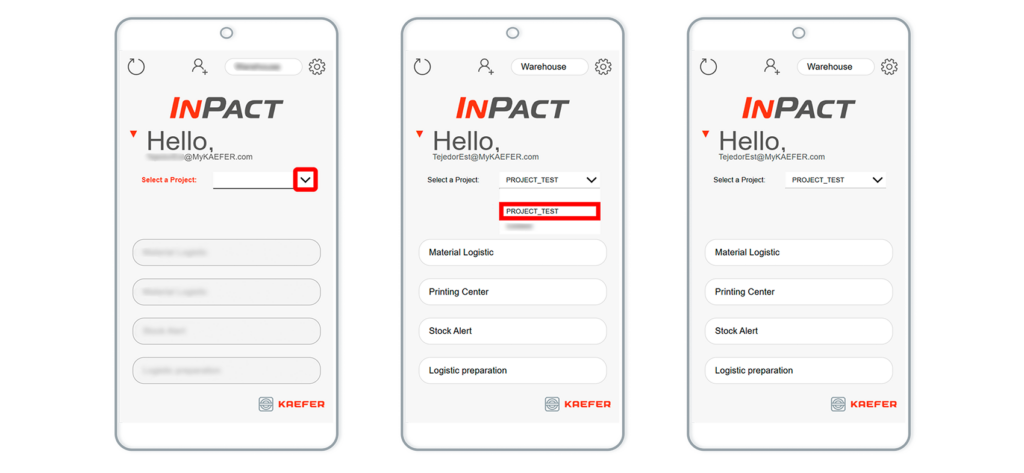
Example of active features of InPact LOGISTICS APP.
What to Do If No Projects or Warehouses Appear?
If the list is empty or you cannot find the required project/warehouse, you must request it.
– Contact your project manager or the person responsible for permissions management in your business unit.
– Request access to the specific project or warehouse you need, according to your role.
After access is granted, refresh the application to update the list.
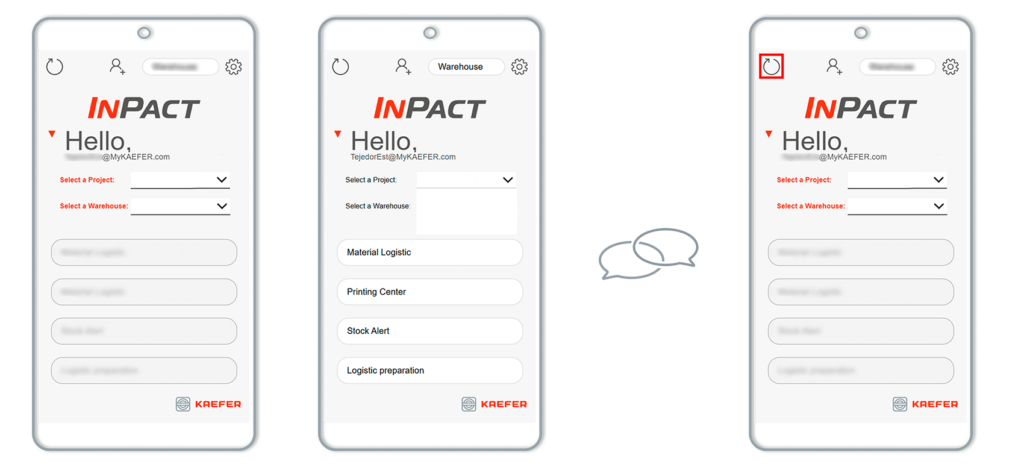
CUSTOMISE THEME AND LANGUAGE
– (A) Change Theme – Some apps allow you to switch between light / dark mode for better visibility.
– (B) Change Language – The app supports multiple languages so you can select your preferred one from the settings menu.
A. CHANGE THEME
When you want to change the theme, click on the top right settings icon and select between light / dark mode.
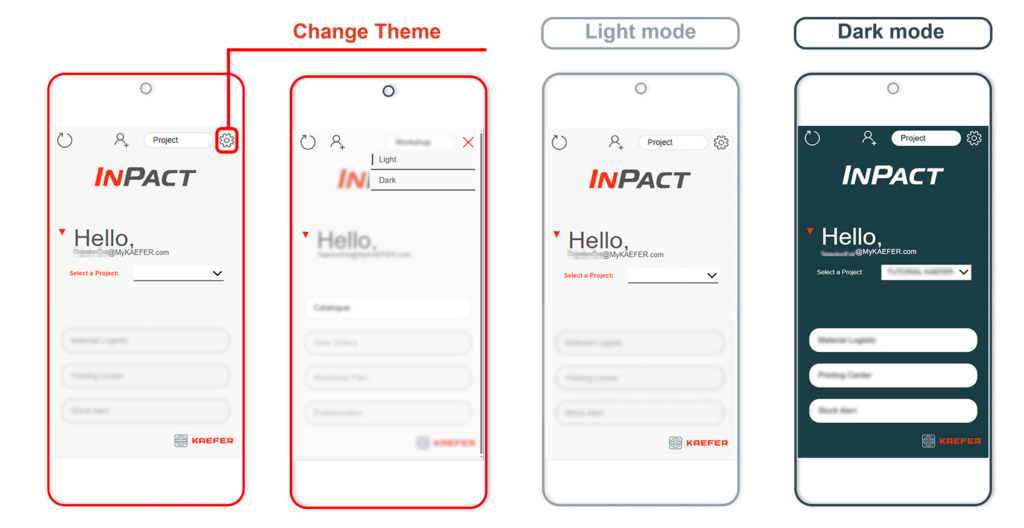
EXAMPLE
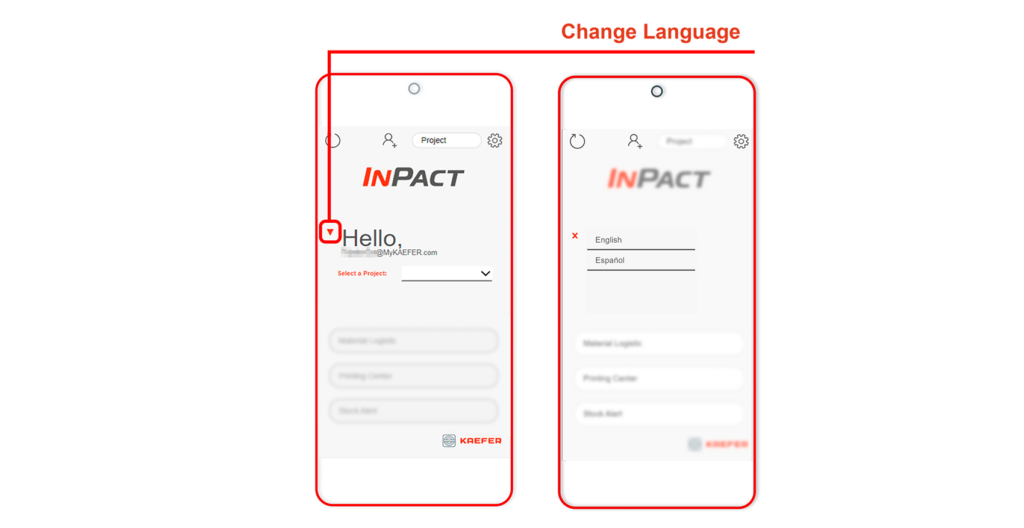
B. CHANGE LANGUAGE
The application displays the language in which it is available via the “Hello” greeting.
When you want to change the language, access the drop-down menu by clicking on the triangle on the left side of “Hello”.