step 2
The functionalities and visualisation may vary depending on the business unit and the role of each employee.
REQUIREMENTS
– A digital device with Android or iOS (iPhone/iPad).
– A internet connection (Wi-Fi recommended for downloads).
– Active KAEFER corporate email address and password.
– Active KAEFER Intune Company Portal (STEP 1.5).
2. Download Power Apps
2.1. Open the app store on your mobile device, locate the Play Store icon (a multicolored triangle).
– Google Play Store (Android)
– App Store (iPhone)

2. 2. Tap the icon to open the Google Play Store.

2.3. Search for Power Apps.
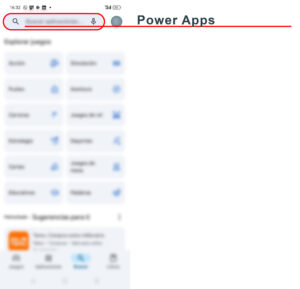
– In the Play Store, tap on the search bar at the top of the screen.
– Type “Power Apps” and press the search icon on the keyboard.
– In the search results, look for “Power Apps” by Microsoft Corporation and tap on the app icon to open it.
– Ensure it has the official Microsoft logo.
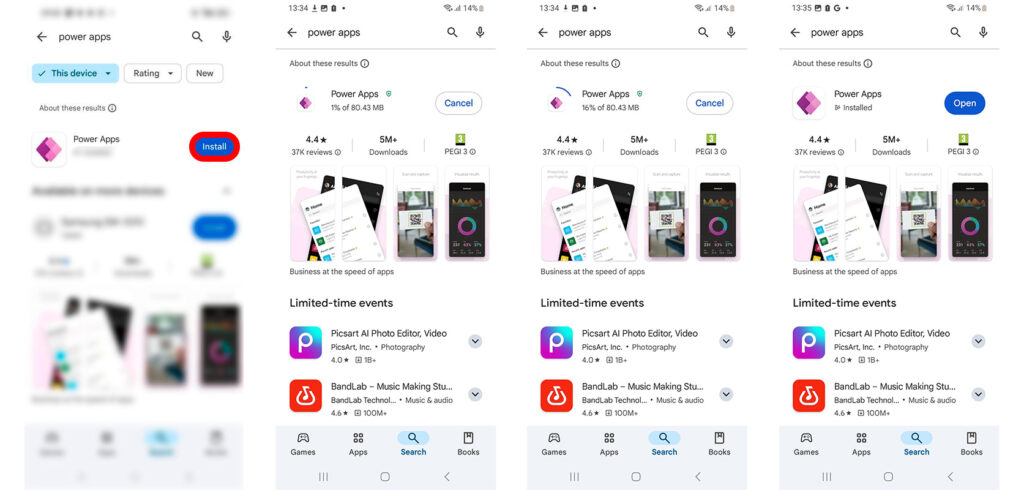
2.4. On the app’s details page, tap Install and wait for the installation to complete (this may take a few minutes depending on your internet connection).
2. Open Power Apps and Complete the Initial Setup
2.5 Press “Open” after installing the Power Apps app, or search for it in your device’s app list.
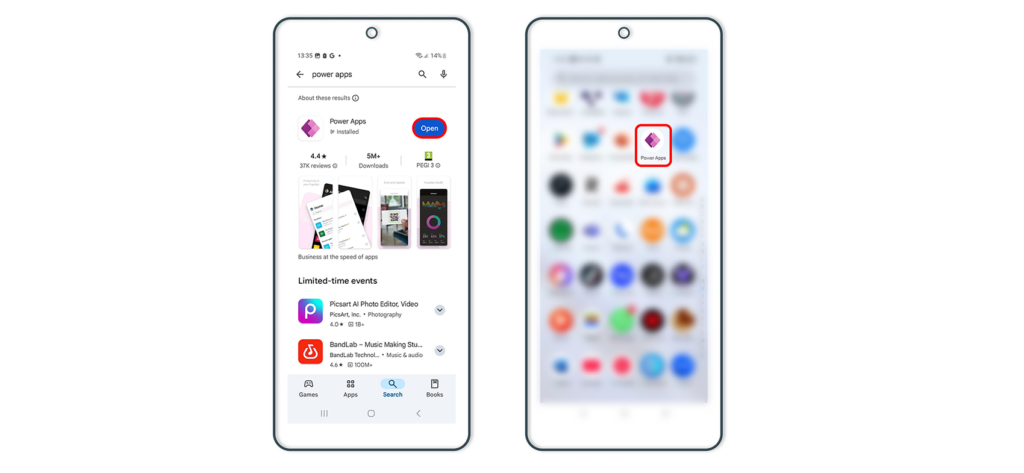
2.6 Wait for the app to load—this may take a few seconds, depending on your internet connection.
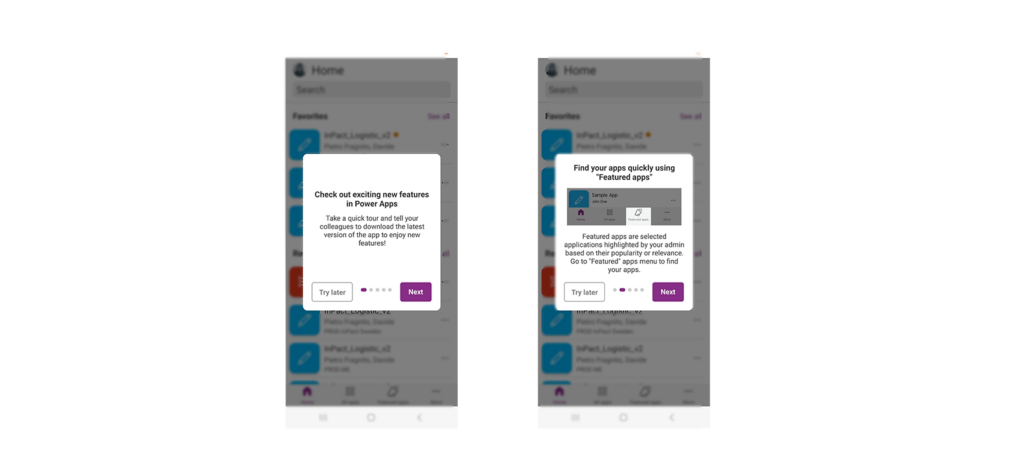
If this is your first time using the app, a welcome tutorial may appear, explaining the basic settings and features.
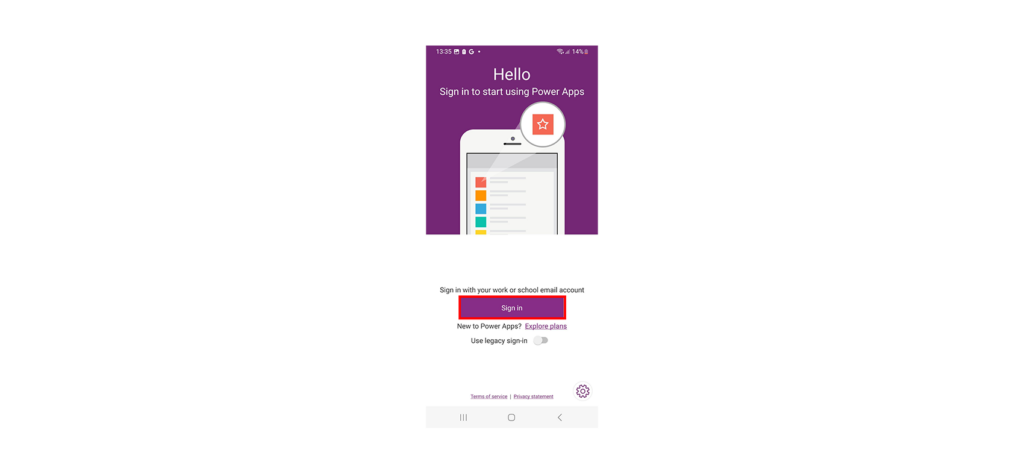
Follow the tutorial or try later until you reach the main screen.